Why Chrome says your browser is managed by your organization
Understand Chrome’s management message, inspect its policy information and identify the right person to help before changing settings.

On this page
What the message means
Chrome’s “managed by your organization” message means the browser has management rules that can control its settings. These rules can come from an organization’s account or device setup, or from software on the computer. On a personal computer, the message alone does not prove malware or identify who controls the browser. [1] [2] [3]
An administrator can restrict features, install extensions and monitor activity. Those are possible capabilities; the message does not establish that someone is monitoring your activity. Check the management information and policies before deciding what needs to change. [1] [2] [3]
Check Chrome without removing anything
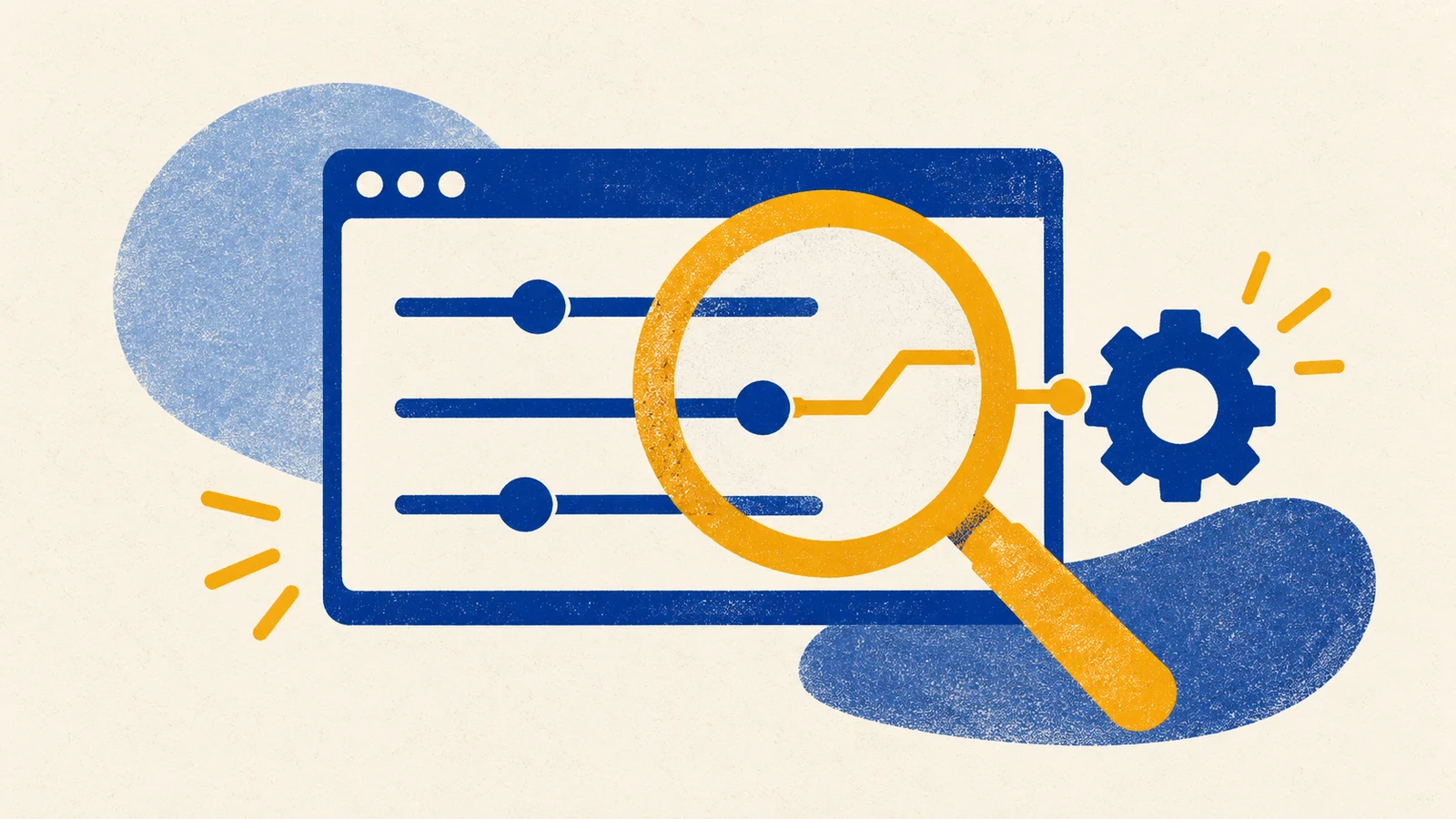
These checks are for desktop Chrome. A policy is a rule that configures browser behavior. Chrome’s management and policy pages let you inspect that configuration; you do not need to delete settings to investigate. [1] [2]
- Establish the device’s context: is it a work or school computer, your own computer, or a secondhand device? Select Chrome’s Profile button to check the active account, if one is signed in. Ask whether it belongs to work or school; an unfamiliar email domain alone is not proof of management. This helps determine whom to contact. [1] [3]
- Open Chrome’s management page. Type
chrome://managementin Chrome’s address bar and press Enter. Read the management information and check which extensions are managed by the organization. [1] - Type
chrome://policyin Chrome’s address bar and press Enter. Review the listed policies, especially any you do not recognize. [1] [2] - Record only the policy names and the Source and Applies to fields needed for your question. Before sharing screenshots or exports with support, review them and remove personal or organizational details. Use them as clues for your investigation, rather than treating them as proof of a particular app, administrator or malicious program. [2] [3]
- Before changing anything, use the situations below to choose a next step. Our recommendation is to confirm the responsible source and request a targeted change instead of removing every policy. [2] [3] [1]
How to read the policy clues
Applies to describes the policy’s scope. Google distinguishes Current user policies from Machine policies. Machine means the rule is set at the device level on a Windows, Mac or Linux computer. [2]
Source describes how a policy is supplied. Platform policies can come through the operating system’s management mechanisms. They can appear even when you are not signed in with a managed account, so your Chrome sign-in alone cannot explain every policy. [2]
Cloud policies are configured through Google’s Admin console, its administration interface. Enterprise default policies are supplied by Chrome developers for enterprise customers. These categories describe configuration sources; they are not necessarily the name of the person or software responsible. [2] [3]
Our interpretation is that a policy name, source and scope can narrow the questions you ask. They cannot, by themselves, establish malicious intent or identify a specific controller. [2] [3]
Choose the next step for your situation
The following decision guide combines Google’s documented management contexts with our recommendations for cautious troubleshooting. An unfamiliar policy deserves investigation, but unfamiliar does not automatically mean harmful. [1] [2] [3]
| Your situation | What it may mean | Recommended next step |
|---|---|---|
| Work or school device | Management may be part of the organization’s browser configuration. | Ask the device or account administrator about the policy and any needed change. [1] |
| Personal device with software you recognize | A Platform policy can exist without a managed-account sign-in. Recognizing an app does not prove it supplied the policy. | Compare the policy with that software’s documentation or ask its support team before changing it. [2] [3] |
| Secondhand device | An improperly reset device can retain management of Chrome browsers or profiles. | Ask the seller or former organization to arrange proper removal of management. [3] [1] |
| Personal device with unexplained policies | The policy fields provide clues but do not establish malware or a named controller. | Take the policy names, source and scope to trusted technical support before attempting removal. [1] [2] [3] |
Why management can return
Google documents that some third-party software can restore Chrome-related Windows registry settings after removal. The registry stores Windows configuration. If that software remains responsible for the settings, deleting them may not resolve the cause. [3]
Our recommendation is to investigate the source rather than repeatedly delete settings. On an organizational device, ask the administrator. On a personal device where the source remains unexplained, seek trusted support with the policy details you recorded. [2] [3] [1]
This guide does not prescribe blanket registry deletion, profile removal or disabling protection. The management message and policy fields do not establish which removal procedure fits your device. Identify the responsible configuration first, then arrange a targeted change with the appropriate administrator or support provider. [2] [3] [1]