Passkeys vs passwords: the differences and a switching checklist
Passkeys resist fake sign-in pages; passwords can be autofilled. Compare how they work and check device support, recovery and shared-device risks before switching.

On this page
The short answer: stronger protection against fake sign-in pages
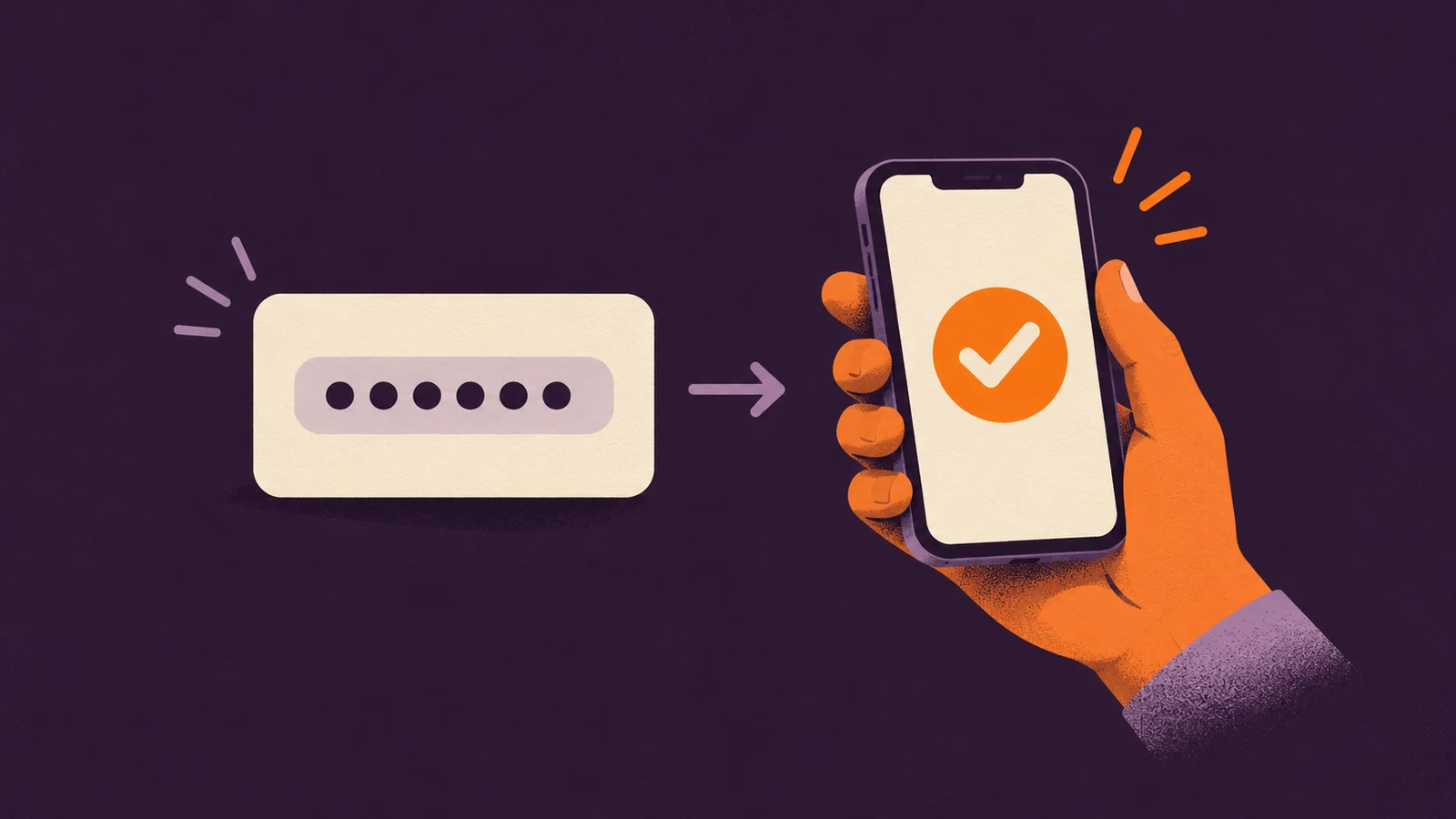
A passkey lets you sign in by approving a prompt on a supported device, often with your fingerprint, face or device PIN. Its main advantage over a password is resistance to phishing: attempts to trick you into giving a fake website your sign-in details. FIDO · Google Password Manager · FIDO recovery guide
Passwords do not always involve typing. A password manager can save and autofill them. Passkeys change how a website verifies you, rather than simply saving keystrokes. The practical tradeoff is making sure you can still get into your account if your usual device is unavailable. Apple · FIDO recovery guide · Google Password Manager
| What matters | Passwords | Passkeys |
|---|---|---|
| Signing in | Type a password or let a manager autofill it. | Approve use of a saved credential with a supported unlock method. FIDO · Google Password Manager |
| Fake sign-in pages | A password can be entered into an impostor website. | The sign-in proof is tied to the real service’s domain. FIDO · FIDO recovery guide |
| Using another device | Use your password or your manager’s saved copy. | Use a synced passkey or a supported cross-device sign-in method. FIDO · Google · Google Password Manager |
| Your password manager | Stores and fills passwords. | Some providers also store and sync passkeys; check which provider you use. FIDO · Google Password Manager |
Why a passkey is harder to give to a fake website
Instead of sending a reusable password, your device proves it has the right private key: a secret piece of cryptographic data. The website keeps the matching public key, which lets it check that proof without receiving the private key. Apple
That proof is tied to the service’s domain, such as the address of the real website. A lookalike sign-in page cannot use the passkey as though it belonged to that page. Your fingerprint or face scan stays on your device; it authorizes the sign-in rather than becoming a secret sent to the website. FIDO · FIDO recovery guide · Google
This protects the passkey sign-in process. It does not make every route into an account equally secure: a weak recovery process can still create an opening for an attacker. FIDO recovery guide
Where your passkey is saved matters
A passkey provider is the software that stores and manages your passkeys. Synced passkeys can be available on other devices through the same provider and account. Device-bound passkeys stay on one device, including certain hardware security keys, so you need a separate backup-access plan. FIDO · FIDO recovery guide
Apple’s iCloud Keychain, for example, syncs passkeys with end-to-end encryption, meaning Apple cannot read the stored keychain data. It offers recovery if devices are lost, but you still need to meet its identity checks. Other providers can have different recovery processes. Apple
Losing a phone and losing access to every passkey are different problems. A synced copy may remain available elsewhere; losing all usable credentials can mean going through the service’s account-recovery process. FIDO recovery guide
Google accounts: passwords, other devices and sign-out
Adding a Google Account passkey leaves existing sign-in and recovery options in place, including your password. In Google’s 2-Step Verification flow, a passkey can replace the separate second step. Other services set their own rules. Google
Google also supports phone-assisted sign-in on compatible computers: scan the displayed QR code and approve on your phone, with Bluetooth enabled. Check its current device, browser and account requirements. Google
Create passkeys only on devices you personally control. Google says that after signing out of an Android device, its passkey can sign you back into that same device for up to six hours; after that, use another method. On non-Android devices, a passkey can be used at any time after sign-out. Signing out does not replace controlling who can unlock the device. Google
Before you switch: a six-point checklist
Use these checks before making a passkey your usual sign-in method. Start with one account whose backup-access options you understand. FIDO recovery guide · Google
- Check support for your service, device, browser and account. Work or school policies may limit Google passkey sign-in. Google
- Use a device you own and control. Avoid storing your passkey on a shared device. Google
- Identify the passkey provider. Find out whether the credential syncs or stays on one device. FIDO
- Review recovery requirements while you still have access. Know how you would recover the provider account and the service account. Apple · FIDO recovery guide
- Confirm a supported backup sign-in route before depending on one device. Do not assume that syncing guarantees recovery. FIDO · FIDO recovery guide
- Check whether password sign-in remains available. If you keep a password, use a unique one and store it securely in a password manager. Google · Google Password Manager
If your device is lost
If you cannot use a synced passkey elsewhere, follow your provider’s recovery instructions. To remove a lost device’s Google passkey, first sign into your Google Account on a device you can still access, then open Security & sign-in. FIDO recovery guide · Google
Remove a manually created passkey under Passkeys and security keys. For an automatically created Android passkey, use Manage all devices and sign out every session with that device’s name. Google notes that matching names can refer to different devices, so this can sign out those devices too. Google
Our recommendation: enable a passkey when the service supports it and you have a recovery route you understand. Keep that backup plan in place as you move between devices. FIDO · FIDO recovery guide