What does Free up space do in OneDrive? A Windows decision guide
OneDrive’s Free up space makes files online-only while keeping their cloud copies. Compare it with Delete and Always keep on this device, and prepare for offline access.

On this page
Free up space removes the full PC copy, keeping the cloud file
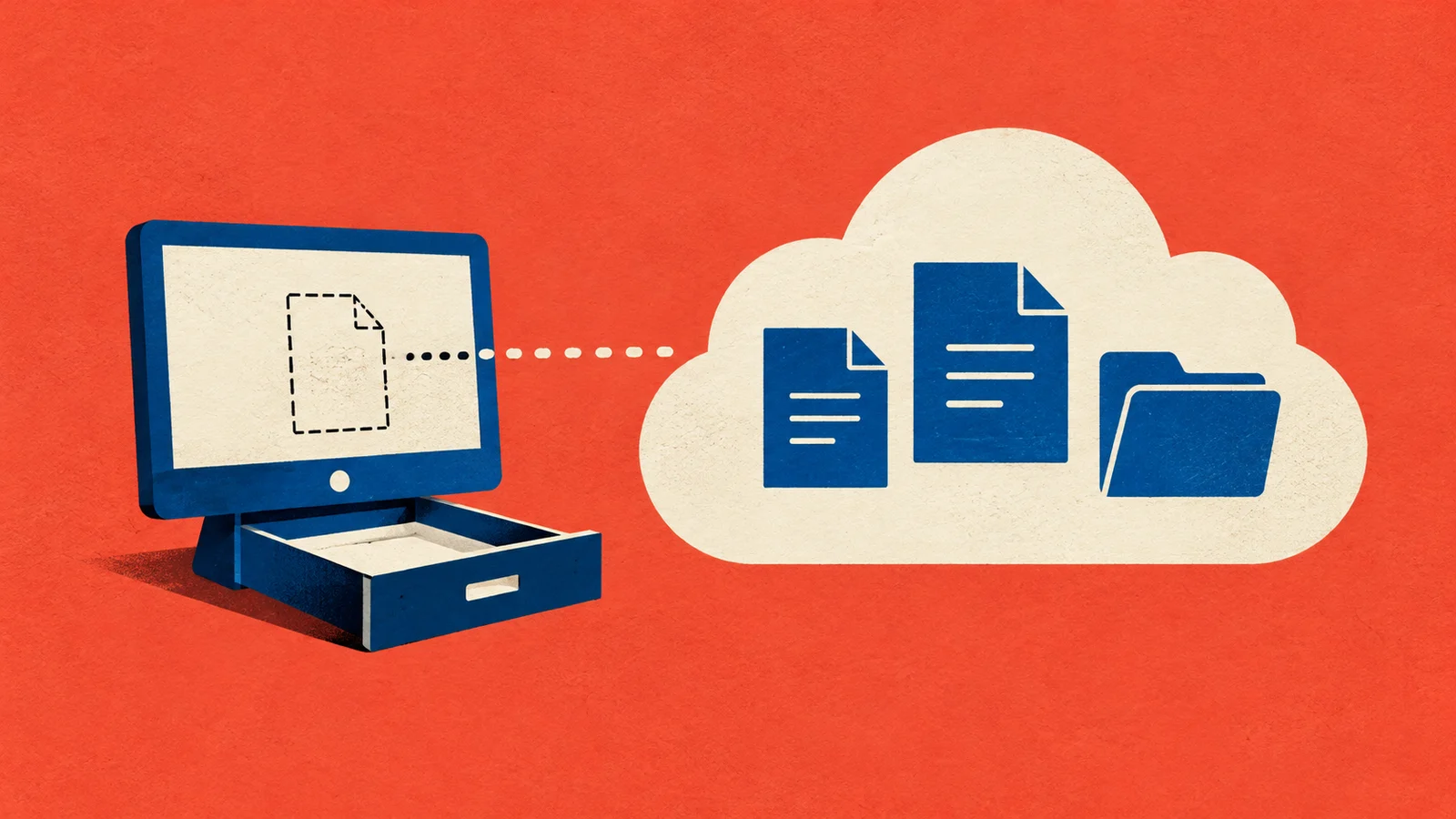
In Windows, OneDrive’s Free up space changes downloaded files to online-only: their cloud copies remain, while the full downloaded copies leave your PC. The files still appear in File Explorer, but you need an internet connection to open them again. This is part of Files On-Demand, which lets you see files without keeping their full contents downloaded. [1] [3]
This frees PC disk space, not your OneDrive cloud storage allowance. Windows keeps a smaller placeholder for each online-only file, so the action does not eliminate every bit of local storage use. [4] [1] [2]
Choose between Free up space, Delete and Always keep
Choose Free up space when you want to retain a file in OneDrive but do not need its downloaded copy. Choose Always keep on this device when you need offline access and can spare the PC storage. [1]
Delete has a different consequence: deleting from your synced OneDrive folder removes the file from OneDrive and other synced devices, even if it was online-only. Deleting a shared item can affect everyone. Do not use Delete simply to remove a downloaded copy from your PC. [1] [2]
| Action | PC copy | Cloud copy | Offline access |
|---|---|---|---|
| Free up space | Full copy replaced by a smaller placeholder | Retained; cloud storage usage unchanged | Requires downloading again [1] [4] [2] [3] |
| Delete from the synced OneDrive folder | File removed from the synced folder | Removed from OneDrive and other synced devices | Deleted item is no longer available through that folder [1] [2] |
| Always keep on this device | Downloaded; uses PC disk space | Retained in OneDrive | Available after downloading [1] |
Check availability and sync before changing files
File Explorer’s availability icons tell you whether a OneDrive file has a local copy. Online-only means the file is stored in the cloud and needs an internet connection to open. [3]
The checklist below is an editorial precaution based on Microsoft’s documented availability and sync states. It is not a guarantee against data loss. [3]
- As a precaution, save your current work and confirm the intended OneDrive account, folder and selected files before changing their availability. [1] [3]
- Check OneDrive’s sync status. Paused sync means files are not syncing, circular arrows indicate syncing, and a red cross indicates a sync failure. [3]
- Wait for pending uploads or other changes to finish, and resolve sync errors before freeing local copies. [3]
- Keep files you will need offline downloaded. Choose Always keep on this device for those files before disconnecting. [3] [1]
How to use Free up space in Windows
For these steps, you need to be signed in to OneDrive and have Files On-Demand available on your PC. In File Explorer, use the context menu inside your OneDrive folder. If Free up space is missing, check Microsoft’s Files On-Demand guidance; on a work-managed PC, ask your IT team. Check your selection carefully, especially when selecting a whole folder. [1]
- In File Explorer, open your OneDrive folder and find the file or folder you want to make online-only. [3] [1]
- Right-click the intended file or folder and choose Free up space. [1]
- Check the availability status afterward. A blue cloud indicates that a file is online-only. [3]
How to download files again
While connected to the internet, open an online-only file to download it. It becomes locally available and can then be used offline while its local copy remains. [3]
For deliberate offline preparation, right-click the file or folder and choose Always keep on this device. Allow the download to finish and check for the solid green circle with a white check before disconnecting. Downloading requires network connectivity and available PC disk space. [1] [3] [5]
For example, before a trip, you could keep required documents on the device and make an archive you will not need online-only. This illustrates the choice: the documents use PC storage but remain available offline; the archive stays in OneDrive and needs internet access to open. [1] [3]
Why PC storage can fill again
Opening an online-only file downloads it again, so local storage use can grow as you access files. Free up space changes availability; it does not prevent later downloads. [1] [3]
Configured Storage Sense, Windows’ storage-management feature, can make inactive cloud files online-only without permanently deleting them. Files marked Always keep on this device are exempt from that behavior. [5]
If OneDrive cloud storage is full
Free up space will not solve a full OneDrive cloud storage allowance because the cloud files remain. Microsoft also says cloud storage availability may take time to update after files are removed from both OneDrive and its recycle bin. [1] [2]
This guide covers Windows Files On-Demand, OneDrive’s system for managing local file availability. If sync errors remain unresolved, seek support before changing local copies; on a work-managed PC, ask your IT team for help. [1] [4] [3]