USB-C to USB: Which cable or adapter do you need?
Connecting USB-A and USB-C? Choose the right cable or adapter, compare common setups, and check data speed, charging and video before you buy.

On this page
The short answer: match both ends
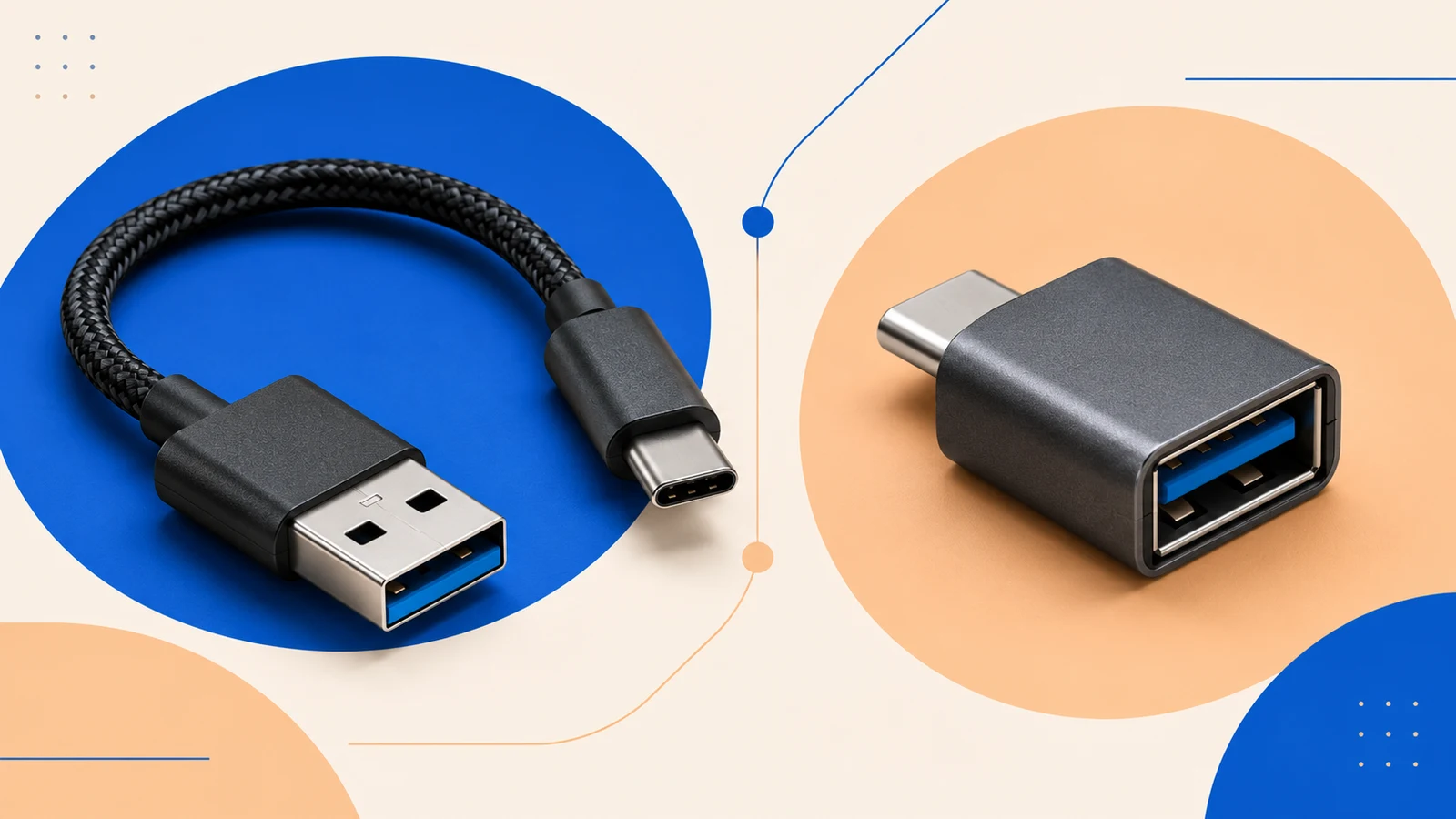
For an accessory with a rectangular USB-A plug and a computer with a USB-C port, look for a USB-C plug to USB-A socket adapter. For a compatible USB-C phone or tablet connecting to a USB-A computer or charger, look for a USB-A to USB-C cable with two plugs. Apple · StarTech datasheet
A plug goes into a socket. A port is the socket built into a device. Product names can blur these differences, so check the pictures and connector specifications before buying. Apple · StarTech datasheet
Which connection are you making?
Use the table to choose the connection type, then check its capabilities. Manufacturer examples below illustrate the differences; they are not a best-product ranking. USB-IF · Apple · StarTech datasheet
| What you have | Connection to look for | Check first |
|---|---|---|
| USB-A accessory; USB-C computer | USB-C plug to USB-A socket adapter | Accessory support, power needs and data rate Apple · Plugable |
| Compatible USB-C phone or tablet; USB-A computer | USB-A plug to USB-C plug cable | Device support for this connection and file transfer StarTech datasheet |
| Compatible USB-C phone or tablet; USB-A charger | USB-A to USB-C charging cable | Device, charger and cable charging specifications USB-IF · StarTech datasheet |
| A monitor to connect | Video cable or adapter matched to the computer output and monitor input | The ordinary USB-A/USB-C connections here do not add DP Alt Mode video StarTech datasheet · VESA · Plugable |
A USB-C connector does not promise every feature
USB-C is itself a USB connector type. In this guide, USB-A means the larger rectangular connector. The smaller USB-C shape does not tell you the data speed, charging capability or whether a display will work. USB-IF · StarTech datasheet
Apple’s adapter shows the socket arrangement: its USB-C plug connects to a compatible device, leaving a USB-A socket for an accessory. Check the listed device compatibility rather than assuming every phone or tablet works. Apple
Plugable adds a useful warning: an accessory may need drivers, the software that lets a device use it. Some phones and tablets may lack the required software or power even when the connectors fit. Plugable
Data speed: read the rating, not just the shape
Mbps means megabits per second; Gbps means gigabits per second. Both describe data rates. They are different from the megabytes and gigabytes commonly used to label file sizes. USB-IF · Plugable · StarTech datasheet
StarTech rates its USB2AC10FBKE cable at USB 2.0 speeds, up to 480 Mbps. Plugable rates its USBC-AF3 adapter at up to 5 Gbps. These are manufacturer ratings, not file-copy speeds measured by Tech Day Book. StarTech datasheet · Plugable
A faster computer cannot remove a slower cable’s limit. USB-IF says a USB 2.0 cable or component makes that connection operate at USB 2.0 speed. For file transfers, check the computer, device and connection together. USB-IF
Charging and video need separate checks
USB Power Delivery, often shortened to USB PD, is a standard for supplying power over USB. A USB-C connector alone does not guarantee it. Plugable explicitly excludes USB PD from the USBC-AF3 adapter. USB-IF · Plugable
The StarTech cable’s datasheet also needs caution: it lists 15W in the power section but 2.5W beside the connectors. Those conflicting figures do not establish how fast it will charge your device. Check the exact charger and device requirements, and ask the manufacturer to clarify a conflicting cable rating. StarTech datasheet · USB-IF
DisplayPort Alternate Mode, or DP Alt Mode, lets a compatible USB-C connection carry video to a display. VESA says to check the device documentation for support. Charging or file-transfer support alone is not enough. VESA · StarTech datasheet
StarTech’s example cable explicitly excludes DP Alt Mode. The ordinary USB-A/USB-C cable and socket-adapter connections discussed here do not add that video capability. For a monitor, choose a documented video connection that matches the computer’s output and the monitor’s input. StarTech datasheet · VESA · Plugable
Before you buy: a six-point checklist
Work through these checks with the product listing and your device documentation open. If a required capability is missing or unclear, confirm it before ordering. USB-IF · Plugable · VESA
- Identify both ends. Note USB-A or USB-C on the computer, charger, device or existing accessory cable. Apple · StarTech datasheet
- Choose plugs or sockets. An existing USB-A plug needs an adapter with a USB-A socket, not another USB-A plug. Apple
- Name the task. For copying files, require explicit data-transfer support and a stated data rate. StarTech datasheet · Plugable
- Check charging separately. Match device and charger requirements, and resolve conflicting cable specifications. USB-IF · Plugable · StarTech datasheet
- Check video explicitly. A charging-and-sync cable is not evidence of monitor support. StarTech datasheet · VESA
- Confirm the exact device combination. Check that the device supports your intended USB-A connection, along with any driver or accessory power requirements. Apple · StarTech datasheet · Plugable